There are two different ways to go about this, and it all depends on what else is on the page really.
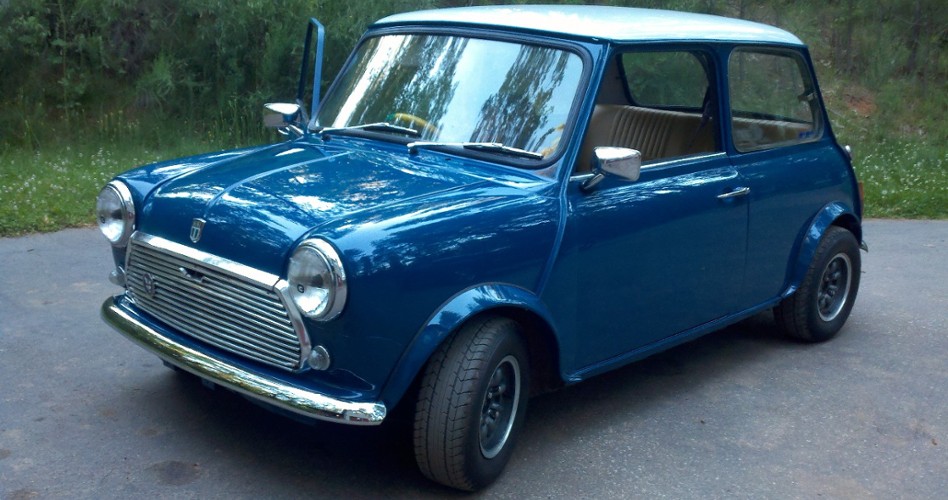
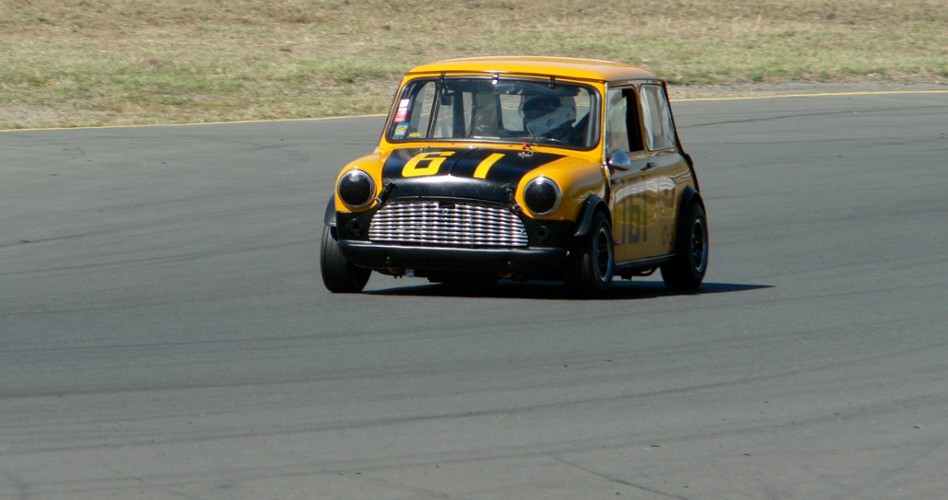
The example to the right is a 'image group' and can be placed anywhere in your body. Also any number of these can be used on a single page.
How To Create and Insert and Image Group: From a Full Page Edit > Content click on the "Image Manager" button at the top.
Find the first image (we'll call it Image A) you want to use in your rotation and click on it. Click on the "SET" button next to the "OnClick Image" option. Select the next image (We'll call it Image B) you want to see in this set by clicking on it. You will then be taken back to the previous image (Image A) settings. Now under "OnClick" select "Auto-Rotate" Then Apply Changes.
A this point we've created a single 'frame' which will show Image A, then after a few seconds show Image B and stop.
If you want Image A to show up again after Image B, select Image B from the Image Manager and repeat the steps above but selecting Image A as it's onClick Image.
Likewise if you want to have a Image C in the mix, set Image B's onclick to Image C, and then Image C to Image A.
You can review your onClick Image Groups by clicking on the 'Image Groups' tab at the top of the Image Manager window.
The other option which is much easier if the page doesn't have any other modules already on it, is the following:
How to Create a Gallery with the Photo Gallery module:
Click on the 'Quick Edit' icon for the page you want the gallery. Click on the "Module Settings" tab Select "Photo Gallery" as the module. Under the Gallery options, select the Gallery Type of "Slideshow" In this case, since we want kinda of a transparent gallery, ie no controls, just the images rotating, we woudl turn off the description, navigation and thumbnails. Next we set our Image size in the 'Large' settings. For best results also select the 'crop' to exact size. This will insure that all the images in the rotation are the exactly the same size which will look best.
Click "Save Live" and refresh the page. You will now have another admin icon under the quick page edit icon. Click on the "Manager Gallery" icon and upload your images. You done!